
Think live streaming is only for tech experts? Think again. Today, user-friendly software turns your YouTube broadcasts into something special. Tools like OBS Studio let you fine-tune your stream, while Streamlabs OBS is perfect for quick setups. With third-party apps to smooth out scene changes and mix audio, even beginners can create a pro-level show. This guide breaks down smart software choices that make every live broadcast more engaging and polished.
YouTube Live Streaming Software: Powerful, Easy Choices
Third-party streaming software can take your YouTube live show from simple to stunning. It gives you extra control over things like scene changes and sound mixing, making your stream look more polished. Whether you’re in for a relaxed gaming chat or a big live event, these tools offer the flexibility you need to wow your viewers. Picture a pro using OBS Studio to fine-tune every scene detail, so each transition feels as smooth as a Hollywood cut.
| Software | Platforms | Price Model | Key Features |
|---|---|---|---|
| OBS Studio | Windows, macOS, Linux | Free, Open Source | Smooth scene shifts, sound mixing, live tweaks |
| Streamlabs OBS | Windows, macOS | Free | Auto-optimization, built-in alerts, easy-to-use tools |
| XSplit Broadcaster | Windows | Freemium/Paid | Mobile-friendly, virtual sets, screen sharing, live chat support |
| Wirecast | Windows, macOS | Paid | Multiple format encoding, integrated graphics, multi-channel audio |
| vMix | Windows | Free trial/Paid | Live video effects, custom transitions, virtual sets, multi-format streaming |
If you’re new to streaming, Streamlabs OBS makes getting started a breeze with smart auto-tweaks and handy widgets. For those who love diving into every detail, OBS Studio delivers the control that experts crave. And if you’re organizing a major event or want extra interactive features, XSplit Broadcaster, Wirecast, and vMix are great choices. No matter your level or event type, there’s a tool out there to boost your YouTube live experience.
How to Set Up Your YouTube Live Streaming Software
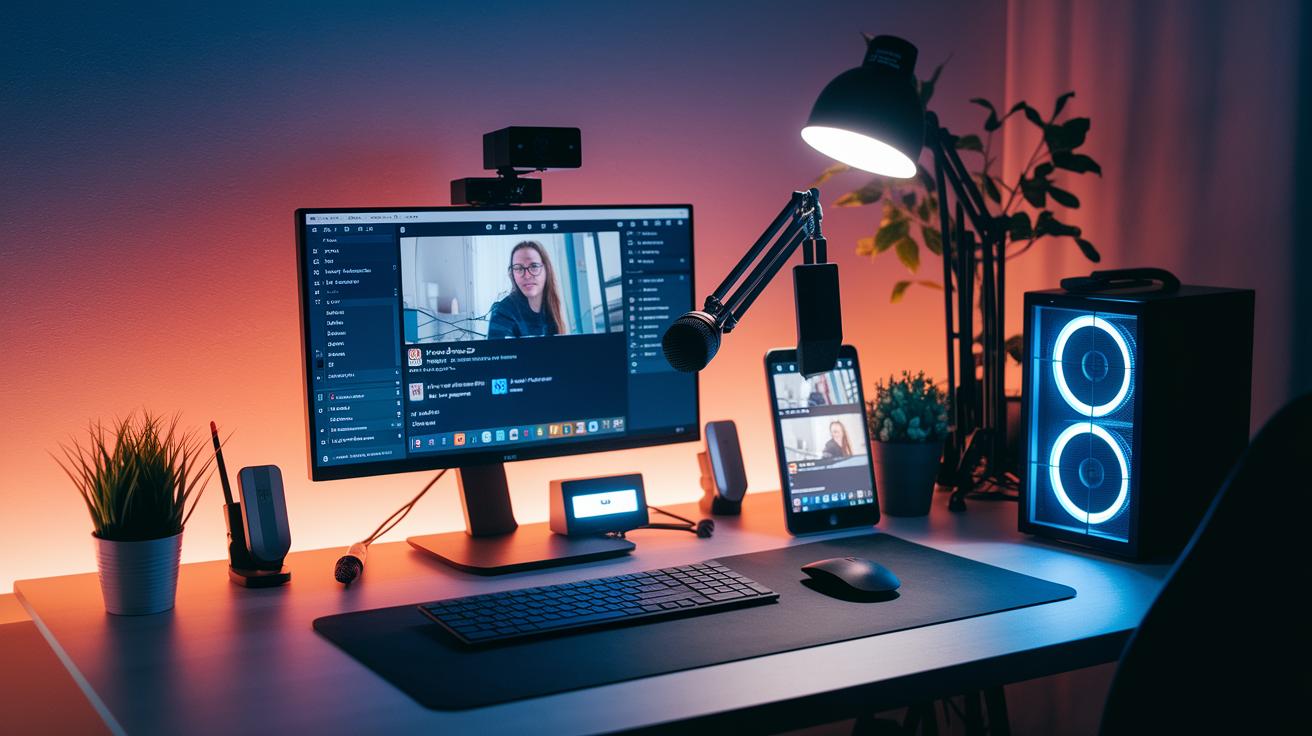
First things first, check your setup. Make sure your computer is ready with solid hardware and a strong internet connection. Grab your microphone, webcam, or capture card, and double-check that they can capture both video and audio. This way, you have a solid base for your broadcast.
Next, head over to YouTube Studio’s Stream settings to grab your stream key. Think of it as a secret password that links your streaming software to your YouTube channel. Write it down or save it somewhere safe because you'll need it soon.
Then, download and install the streaming software you picked, like OBS Studio, Streamlabs OBS, or XSplit Broadcaster. Follow the installation guide provided by the software to make sure all the necessary files and updates are in place before you go live.
After that, plug in your broadcast tools, your microphone, webcam, or capture card. Open your live streaming software and set up your audio and video sources. Adjust the levels, choose the right devices, and test them to be sure your sound is clear and your visuals are sharp.
Finally, optimize your network settings by entering your stream key into your encoder and setting your bitrate. For a smooth 720p stream, around 4 Mbps works well. Use a wired Ethernet connection for a steady signal, and run a test using YouTube’s Preview mode to make sure everything is set up perfectly.
Compatibility and Core Features in YouTube Live Streaming Software
YouTube live streaming software works with many operating systems. For example, OBS Studio and Streamlabs OBS run on Windows, macOS, and Linux. This means whether you're using a PC, a Mac, or another system, you have a sturdy choice. On the other hand, XSplit Broadcaster mainly supports Windows, so it's less flexible.
Mobile streaming is a game-changer for creators on the move. Apps like Streamlabs Mobile and Larix Broadcaster offer direct YouTube RTMP support. That allows you to go live straight from your smartphone or tablet without fussing with extra gear. It's perfect for quick broadcasts where quality still matters.
Another great perk is the plugin ecosystem. OBS Studio, for instance, lets you add extra features like a virtual camera or NDI support through its plugins. Streamlabs even offers its own widget store. These tools let you spice up your broadcast with interactive alerts and fun overlays, giving your streams a personal touch.
Customizing the user interface also makes a big difference. Many programs let you adjust layouts and save scene collections to suit multi-camera setups and overlays. This flexibility keeps your live production organized and smooth, even when things are busy.
If you switch between devices or locations, a cross-platform solution is your best bet. It ensures your setup stays consistent whether you're streaming at home or on the road, making your live sessions reliable every time.
Optimizing Performance for High-Quality YouTube Live Broadcasts

Try using hardware encoding like NVENC or QuickSync instead of heavy software encoding (x264). This switch frees up your CPU to take on other tasks and makes your broadcast transitions really smooth, even when you're streaming high-res video.
Match your bitrate and resolution to your streaming goals. You might use settings like 1080p at 6 Mbps or 720p at 4 Mbps, but tweak them to fit your internet upload speed so your stream stays clear and steady.
Turn on adaptive bitrate or resolution scaling to handle sudden changes in your bandwidth. It automatically adjusts your stream when network conditions shift, giving your audience a smooth viewing experience.
Shut down background apps, update your drivers, and stick with a wired Ethernet connection to cut any delays. These simple moves can cut your startup time to under 5 seconds and keep your broadcast reliable.
Advanced Configurations and Extensions for YouTube Live Software
Advanced configurations can really transform your live broadcast. They add a splash of flair and bring interactivity right to your screen. With overlay packages and browser sources, you can show off lower-thirds, live scoreboards, and instant polls. Multi-streaming plugins let you broadcast on YouTube, Facebook, and Twitch at the same time. Some platforms even use AI to pick out key moments and drop in replay markers. It makes your stream feel as exciting as a live show on stage.
Virtual Studio Effects
Tools like vMix and Wirecast let you change your background with green-screen keying or background swaps. You can try out 3D preset sets and smooth transition effects for a polished look. This creates a studio-quality vibe for live interviews or product demos.
Adding custom alert integrations and real-time chat overlays makes it even more engaging. These features sync up notifications with on-air actions, so every viewer feels like they’re in the room.
Plugin Extensions
OBS plugins and Streamlabs widgets push your setup even further. They support multistreaming and let you add on-screen chat feeds and alert triggers. These extensions are easy to set up and customize, boosting your stream’s interactivity without slowing things down.
From small, personal broadcasts to big, high-energy events, these advanced tools give every creator the power to design a truly engaging stream.
Troubleshooting and Security Best Practices for YouTube Live Streams

When your live stream starts to buffer or lag, your settings might be pushing more than your network can handle. If you see frequent freezing or stuttering, your resolution or bitrate could be too high, and too many apps running in the background might overload your system. A quick check of your settings might save you a lot of hassle.
Try lowering your resolution and bitrate to ease the strain on your hardware. Close any programs you're not using, and if possible, switch from Wi-Fi to a wired Ethernet connection. This small switch can help stabilize your stream and cut down lag during live broadcasts.
Keep an eye on your stream health by checking YouTube Analytics. Watching for frame drops or encoder issues during your broadcast lets you catch problems early, so your live show runs smoothly. It’s always smart to test things as you go.
For extra account security, change your stream key after every event and enable two-factor authentication on your YouTube account. Also, update your encoder and GPU drivers and remember to whitelist your RTMP ports in the firewall. These steps help keep your broadcast safe and sound.
Final Words
In the action, we compared the best tools for streaming live on YouTube. We broke down setup, compatibility, and performance tips to make finding the right fit a snap.
We covered everything from basic setups to advanced tweaks and even shared practical fixes. With hands-on advice, you can choose the perfect youtube live streaming software that matches your style and skill level.
Keep experimenting, stay curious, and enjoy making your broadcasts shine on screen.
FAQ
What YouTube live streaming software is free for PC and Android?
The YouTube streaming software with no cost includes OBS Studio and Streamlabs OBS. They work well on PC and Windows 10, while apps like Streamlabs Mobile support Android for on‐the‐go streams.
Is OBS Studio 100% free and compatible with various systems?
OBS Studio is completely free and open source. It runs on Windows, macOS, and Linux while providing advanced scene controls, real-time audio mixing, and flexibility for high-quality broadcasts.
Which software is best for YouTube Live streaming?
Top choices for YouTube Live streaming include OBS Studio, Streamlabs OBS, XSplit Broadcaster, Wirecast, and vMix. Each offers unique features that cater to creators from beginners to seasoned pros.
Do I need streaming software to live stream on YouTube?
Yes, streaming software is necessary. It manages camera feeds, mics, graphics, and transitions to create a smooth broadcast and helps you engage with your audience effectively.
What do YouTubers commonly use for live streaming?
Many YouTubers prefer OBS Studio and Streamlabs OBS for their user-friendly interfaces and robust features. Some also opt for XSplit and Wirecast to handle enhanced production elements during live streams.
How do tools like StreamYard, vMix, and Bandicam fit into live streaming?
StreamYard offers browser-based ease for simple broadcasts, vMix delivers customizable live video effects, and Bandicam is known for high-quality recording. Each tool meets different streaming needs effectively.