
Ever wonder why some streams run like a dream while others just lag behind?
Using the right Twitch streaming software is the secret behind a smooth and exciting broadcast.
Imagine your live show as a finely tuned engine. Every tool works in sync to bring out the best in your performance.
When you pick the right options, you lighten your computer's load and captivate your audience.
Let’s explore different choices that work on many systems and match various styles, giving your stream the boost it deserves.
Essential Software Solutions for Twitch Streaming
Picking the right streaming software can really change your performance. When your tools match your system and style, your stream runs smoother and your viewers have a better time. Using efficient software not only saves your computer’s power but also makes watching your live stream a joy.
Free tools like open streaming software are a great start if you want quality without spending money or slowing down your computer. They’re perfect for older or low-end devices, giving you a strong start without compromise.
- OBS Studio – This open-source tool works on Windows, macOS, and Linux. It uses NVENC and Quick Sync encoders to take extra work off your CPU.
- Streamlabs Desktop – Based on OBS, it adds built-in widgets and alerts. It’s easy to set up and feels very friendly.
- Twitch Studio – Made by Twitch, this app sets up your mic and camera automatically. It keeps your CPU light but limits your stream to 720p.
- Lightstream – A browser-based option that uses cloud encoding. It takes the heavy lifting off your computer.
- Yostream – Another web tool that sends encoding work to remote servers. It’s ideal for older laptops and less powerful systems.
Your hardware and how comfortable you are with tech are key. If you love tweaking settings, OBS Studio gives you lots of freedom. Newcomers might enjoy the ease of Streamlabs Desktop. And for those with older machines, browser tools like Lightstream or Yostream are the way to go. Choose the software that fits your setup, and you’ll enjoy a smooth broadcast every time.
Comparing Twitch Broadcast Toolkits
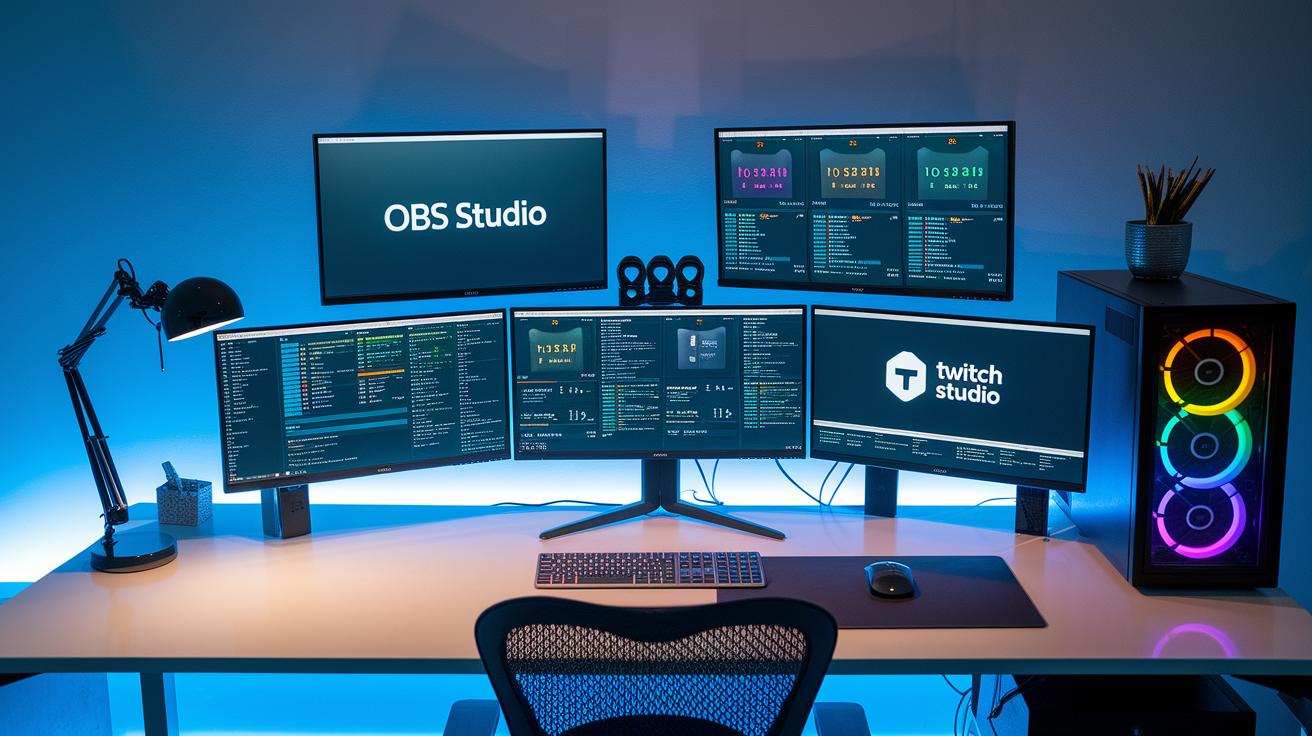
When you're picking a streaming toolkit, keep an eye on the operating system it runs on, how much strain it puts on your CPU, and its price. One surprising fact: before hitting 10,000 subscribers, a top streamer tweaked OBS settings to save CPU cycles during fan surges. Tests show Twitch Studio can cut CPU usage by about 15% during busy streams.
| Software | Operating System | Price | CPU Impact | Key Feature |
|---|---|---|---|---|
| OBS Studio | Windows, macOS, Linux | Free | Moderate | Huge plugin library |
| Streamlabs Desktop | Windows, macOS | Free (Premium options) | Moderate | User-friendly interface with auto-tweaks |
| Twitch Studio | Windows | Free | Low | Easy setup with built-in presets |
| Lightstream | Browser-based (All platforms) | Free | Minimal | Cloud encoding |
| Yostream | Browser-based (All platforms) | Free | Minimal | Remote server encoding |
OBS Studio is best if you want full control and a ton of plugins. Streamlabs Desktop is great if you like a clean, auto-adjusting setup. For a quick and easy start, Twitch Studio works well, though it caps your stream at 720p. And if you're using a low-powered device, Lightstream and Yostream are smart choices since they move the heavy work to the cloud and even work with YouTube Live for smooth, cross-platform streaming.
Setting Up Your Twitch Stream with Beginner’s Software
Picking the right software is key to a smooth broadcast. Many new streamers choose OBS Studio or Streamlabs Desktop because they are simple and user-friendly. This guide shows you the basic steps to go live on Twitch without any fuss.
- Download and install OBS Studio or Streamlabs Desktop.
- Connect your Twitch account with OAuth.
- Set your bitrate between 2500 and 6000 kbps.
- Pick your resolution, either 720p or 1080p.
- Build scenes and add your capture sources.
- Set up chat overlays so you can see the conversation.
- Do a test stream to check your setup.
- Keep an eye on audio and video sync during the test.
Once these parts are ready, give your stream a trial run. Check for any hiccups and adjust settings if needed. A quick test stream makes sure your setup will work smoothly when you go live.
Optimizing Twitch Stream Quality with Advanced Broadcast Solutions
Optimizing your Twitch stream is more than just looking good. It’s about keeping your broadcast steady while easing the load on your computer. A smooth stream means fewer dropped frames and a clearer, more engaging video. When your CPU isn’t working overtime, you cut down on lag and boost video clarity. Even small changes, like shutting down extra apps or lowering the resolution, can make a big difference.
When your settings are just right, you lower latency and lift overall stream quality. Every tweak steals some stress from your computer, freeing up power for high-definition streaming and real-time chats. This smart management helps stop sudden CPU spikes that can break your live show.
- Close background apps like Discord and extra Chrome tabs to free up resources.
- Lower the resolution to 720p to ease processing demand.
- Keep your bitrate around 2500 kbps to strike a good balance.
- Choose a "faster" encoding preset in OBS to lessen CPU load.
- Use NVENC to reclaim about 20% of your CPU power.
- Clean your hardware fans often, especially in warm weather, to avoid overheating.
- Limit overlays and run antivirus scans to keep your software running smoothly.
Keep an eye on your performance. Using monitoring dashboards and real-time analytics lets you track your stream’s health and adjust settings on the fly. This way, your broadcast stays smooth and visually sharp.
Professional Streaming Tools and Customizable Live Production
Live streaming like a pro gets a whole lot easier with the right tools. A full broadcast suite lets you tweak every video and sound detail. Custom layout apps and built-in overlay alerts make sure your stream grabs attention and keeps viewers watching with smooth scene changes and top quality all the way. These smart tools also take care of routine jobs, so you can concentrate on delivering awesome content.
These advanced modules do a lot more than just the basics. They create a dynamic, interactive show with real-time tweaks that make even a multi-layer setup feel simple. Plug-ins such as automatic scene switching and live performance data add-ons keep your broadcast running without hiccups. You can mix different audio sources, switch cameras on the fly, and control visuals that truly captivate your audience, all while cutting down on last-minute fixes.
- Custom overlays: Create your own branded visual touches.
- Chat bots: Handle viewer messages automatically.
- Audio mixers: Keep your sound balanced and clear.
- Scene automation: Switch scenes easily without manual work.
- Performance analytics: Check live data to adjust your show.
- Multi-camera integration: Combine feeds from different cameras for fresh angles.
Multiplatform Broadcast Systems and Mobile Options for Twitch
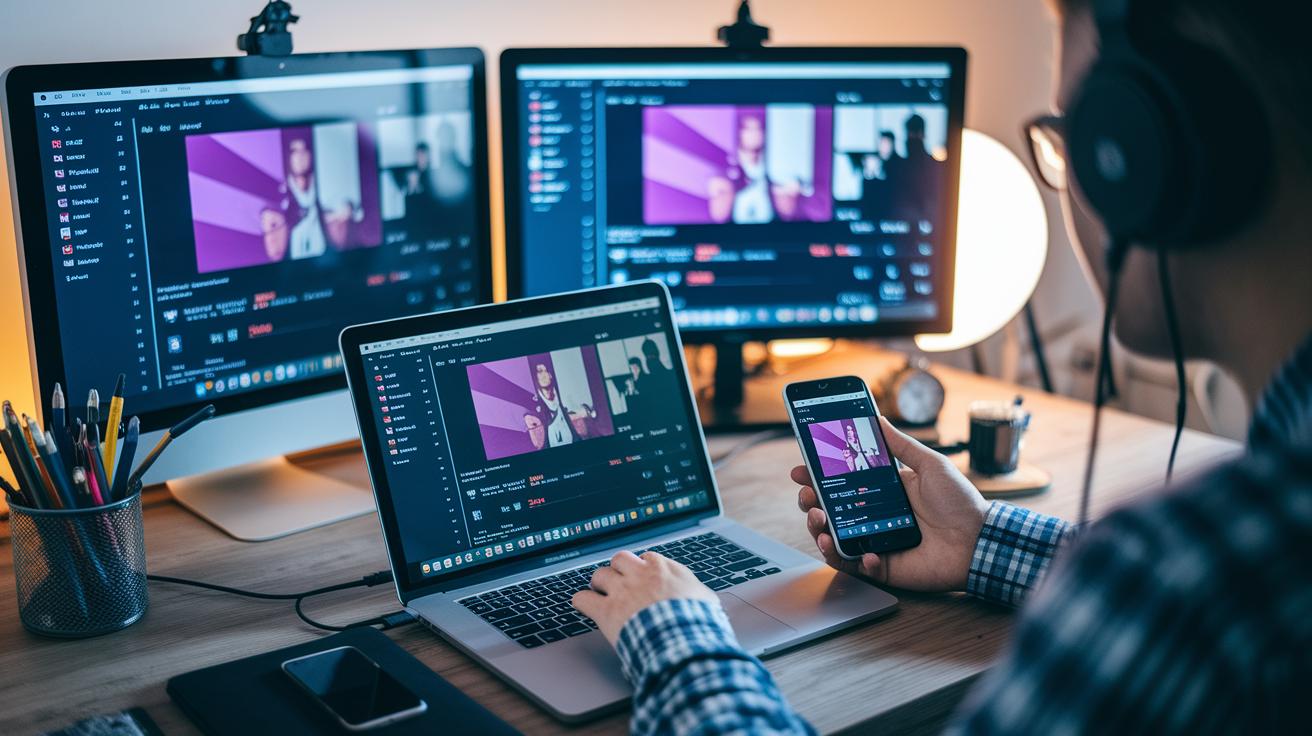
Streaming on Twitch isn’t just for your desktop. Today, you can go live from almost any device. Whether you're at home or on the go, modern broadcast systems let you stream where your creativity takes you. The top software supports macOS, and many browser tools work great on Windows, macOS, Chromebooks, and even mobile phones, no downloads needed.
- OBS on Mac – Gives full macOS support with lots of adjustable controls and cool, powerful settings.
- Streamlabs on Mac – Blends OBS’s flexibility with built-in overlays and a user-friendly vibe for easy streaming.
- Lightstream – A cloud-based tool that works on Windows, macOS, Chromebooks, and mobile devices, so your computer doesn’t get bogged down.
- Yostream – A browser tool that uses remote encoding to lessen the load on your CPU and works across all major platforms.
- Mobile apps – Native apps for iOS and Android let you stream on the fly without losing quality.
This variety means switching between a fixed workstation and a mobile setup is a breeze. Whether you're using a complex desktop program or a simple mobile app, features like remote encoding and cross-platform support keep your stream running smoothly. In short, these tools let you catch live moments whenever and wherever they happen, keeping your Twitch channel lively and connected.
Final Words
In the action, we've explored top choices that simplify everything from setup to performance tweaks. The guide broke down free broadcast software options and compared tools on ease of use, CPU load, and key features. It also showed how to match each tool to your needs. Each software for streaming twitch is built for both beginners and pros. Enjoy experimenting with new options and step up your live creations while keeping things streamlined and fun.
FAQ
What free software options are available for streaming on Twitch?
The free options include OBS Studio, Streamlabs Desktop, and Twitch Studio, each offering simple setups, compatibility across platforms, and extra features like built-in widgets and auto-configuration tools.
What is OBS Studio and what does it offer?
OBS Studio is an open-source streaming tool that runs on Windows, macOS, and Linux. It supports hardware encoders like NVENC and Quick Sync and boasts a vast plugin library.
What is Twitch Studio and how does it work?
Twitch Studio auto-configures your mic, camera, and bitrate for easy setup, though it streams only up to 720p. It’s a straightforward option for Twitch’s built-in streaming experience.
What are the benefits of using Streamlabs Desktop?
Streamlabs Desktop builds on OBS Studio by adding built-in alerts, widgets, and auto-optimization. This makes it a great choice for beginners who want extra features without the extra hassle.
What software do Twitch streamers commonly use?
Twitch streamers typically use OBS Studio, Streamlabs Desktop, and Twitch Studio, along with alternatives like XSplit, Wirecast, StreamYard, vMix, and Bandicam, all providing various features to fit different needs.
Can you really earn $1000 a month on Twitch?
Yes, you can earn $1000 a month through subscriptions, ads, and donations, though income ultimately depends on your audience size, engagement, and consistency.
Is Streamlabs Desktop better than OBS Studio?
Streamlabs Desktop enhances the OBS Studio experience with built-in features ideal for beginners, while classic OBS Studio offers more customization. The best choice depends on your comfort with extra options.
How much do 10,000 views on Twitch typically pay?
Earnings for 10,000 views vary widely due to differences in ad revenue, subscriptions, and donations, with factors like viewer engagement and sponsorship deals playing a key role.
What are some alternatives to OBS Studio for streaming?
Alternatives such as XSplit, Wirecast, StreamYard, vMix, and Bandicam offer a range of features from beginner-friendly interfaces to advanced production tools, each suited to different streaming styles.