Ever wonder if free streaming software can hold its own against expensive alternatives? Free tools like OBS Studio, Meld Studio, and Wondershare DemoCreator show you don't have to spend a lot to get fantastic live streaming. They let you mix video and audio on the fly with a setup that's simple enough for beginners but powerful enough for pros. In this post, we'll explore how these options make your live broadcasts both high-quality and easy to manage. Read on to find the tool that could boost your streaming game.
Overview of Open Streaming Software Options
OBS Studio is a free and open-source tool that works on Windows, macOS, and Linux. It records in simple HD up to dazzling 4K (3840×2160) and lets you mix audio and video live. Picture switching between camera views and slick graphics without a hitch. OBS really makes that flow smooth.
Meld Studio is a free streaming app for Windows and macOS that keeps things simple. It comes with a clean, easy-to-use design and leaves out watermarks, time limits, or hidden fees. You can livestream and record at once while sending your broadcast to platforms like Twitch, YouTube, TikTok, Facebook Live, or even your own RTMP setup. Plus, it supports both landscape and portrait modes, so you can create cool multi-screen displays without extra plugins. Simply put, it lets you experiment with different view layouts while keeping everything top-notch.
Wondershare DemoCreator gives you a free set of tools to capture your screen, audio, and webcam. It handles speeds from 15 fps up to 120 fps and even includes built-in editing. That means you can trim, cut, and combine clips right after you record. DemoCreator makes it easy to grab live moments and polish them on the spot without switching apps.
Each of these apps brings its own strengths to the table. Whether you love OBS Studio’s open, flexible design, Meld Studio’s smooth multi-platform streaming, or DemoCreator’s record-and-edit all-in-one approach, there’s a tool here to help you shine.
Comparing Key Features of Open Streaming Software
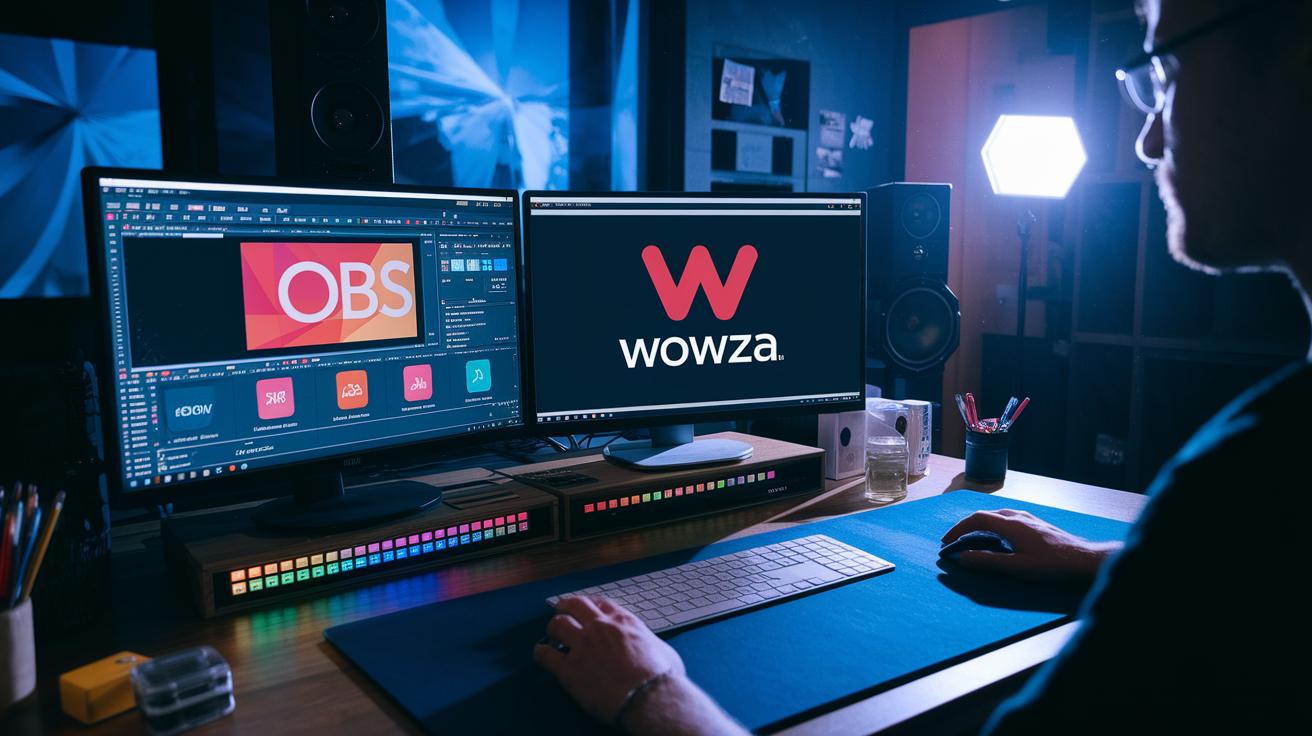
OBS Studio gives you real control over your video. You can set your own capture resolution, adjust the frames per second, and even tweak the bit rate to keep things smooth. The interface is clean and makes adding multiple sources a breeze. Plus, there are over 20 community plugins to boost its power. Many creators swear by the tip, "Set your FPS to 60 for smooth, crisp action." It also pairs well with the Wowza Streaming Engine, making it a solid pick for streamers on Twitch and YouTube Live.
Meld Studio blends creative flair with technical strength. It uses GPU-accelerated effects and animated transitions so you can design a look that's truly your own. With customizable graphic features for creating dynamic overlays and a scene-specific mixer with super-low latency for clear sound, you're all set. A neat trick is setting separate audio tracks for Twitch VODs to keep commentary and music distinct. Also, support for VST3 plugins gives you extra tools to fine-tune your audio, making your stream both visually engaging and sonically sharp.
DemoCreator turns things up a notch by adding fun 3D avatar features along with GPU acceleration. It produces outputs from HD to 2K, so whether you're streaming live or editing later, the tool fits the bill. Imagine updating a 3D avatar live, it’s a simple step that adds a playful, interactive vibe to your content.
| Software | Key Video Features | Audio & Effects | Extra Tools |
|---|---|---|---|
| OBS Studio | Custom capture resolution, adjustable FPS, downscaling, steady bit rate | Clean interface, over 20 community plugins | Integrates with Wowza Streaming Engine |
| Meld Studio | GPU-accelerated effects, animated transitions | Scene-specific audio mixer, VST3 support | Custom graphics, separate audio tracks for Twitch VODs |
| DemoCreator | GPU acceleration, outputs from HD to 2K | N/A | 3D avatar integration, built-in editing tools |
Installing Open Streaming Software on Windows, macOS, and Linux
OBS Studio installs a bit differently depending on your device. On Windows 10 and 11, it uses DirectX 12 to really tap into your computer’s graphics power. In fact, installing OBS with DirectX 12 can give your streaming a big boost.
Mac users, you’re covered too. The installer works smoothly on both Intel Macs and the newer Apple Silicon models, so you won’t need to jump through extra hoops.
If you’re on Linux, the process is a touch more hands-on. OBS needs FFmpeg along with X11 or Wayland. This means you’ll have to use your distro’s package manager to grab the right files, making sure your display and audio work just right.
For an even simpler setup, consider Meld Studio. It offers native installers for Windows and macOS with no extra plugins required. DemoCreator also keeps things easy, packing built-in codecs into its downloads. Just remember, your system should meet basic requirements like 8 GB of RAM and a GPU that supports acceleration to keep videos running smooth.
Before you hit install, double-check that your device fits the system requirements. A quick run-through now can help you avoid any hiccups later so you can focus on creating great content.
Advanced Configuration in Open Streaming Software
OBS Studio gives you the freedom to quickly switch between different scenes and setups. You can even create custom RTMP outputs and turn on a virtual camera, which makes it a breeze to use with your favorite conferencing apps. Plus, syncing audio and video with easy filters means your live broadcasts sound smooth and natural. Fun fact: early users found that linking audio filters cut echo and made voices crystal clear.
Meld Studio steps things up with a multi-canvas view that lets you design your own overlays. Imagine pushing your stream to several RTMP destinations at once! Its built-in VST3 plugins let you adjust audio in real time, and you can add interactive widgets like live vote counters or chat feeds right into your broadcast.
Both OBS Studio and Meld Studio give you extra creative control. Linked audio filters and GPU-powered transitions work together to make effects pop. They also let you set up custom scripts. That means you can automatically switch scenes, adjust sound levels, or trigger visual effects exactly when you need them.
- Set up multiple scenes and sources
- Create your own RTMP outputs
- Use linked audio filters and GPU transitions
With these advanced setups, you can craft a live show that’s both smooth and totally your own.
Troubleshooting Common Issues in Open Streaming Software
When you're live on OBS Studio, you might see high CPU use, dropped frames, or a mix-up between audio and video. Try changing your bitrate or switch to a constant bit rate (CBR) setting. You can also swap encoders, choose x264 for more control or NVENC to lighten your CPU’s load. Updating your GPU drivers might just do the trick too. If your stream feels laggy, lowering the capture resolution or adjusting the downscaling can help even things out.
Meld Studio sometimes shows its own quirks. You might run into issues like GPU acceleration conflicts, RTMP connection errors, or even problems with your audio device. Start by updating your GPU drivers so everything is running smoothly. Next, check your network ports to catch any connection snags. And don’t forget to use the app’s logging feature, it can highlight exactly where things are going wrong.
| Step | Action |
|---|---|
| 1 | Adjust bitrate and switch to CBR settings |
| 2 | Try different encoders: x264 or NVENC |
| 3 | Update your GPU drivers |
| 4 | Check network ports and review log diagnostics |
Follow these simple steps to keep your broadcast steady and your live stream smooth.
Optimizing Performance in Open Streaming Software
If your stream is acting up, start with the basics. Keep your bit rate steady and try NVENC for GPU encoding. Then, if you're up for it, play around with keyframe intervals to make the whole image refresh smoother. I once set keyframes every 2 seconds, and it really cut down the lag.
Meld Studio also gives you some neat, platform-specific tweaks. If you're on Windows, flip on DirectX 12 mode. On macOS, use Metal acceleration to ease the load on your system. You can even adjust the downscale filters to handle higher resolutions better.
- Experiment with keyframe intervals.
- Adjust downscale filters.
- Use DirectX 12 on Windows and Metal on macOS.
Community and Plugin Ecosystem for Open Streaming Software
The open streaming software world runs on the energy of its community. OBS Studio shines with a lively mix of users on GitHub and active forums, all sharing cool plugins like countdown timers, unique transitions, and chat tools. One user shared, "I added a countdown plugin just before my live, and the precision saved my stream!" Volunteer coders keep pushing out fresh improvements every day.
Meld Studio benefits from creative asset packs and handy script examples made by its users. Creators regularly post custom overlays and widget scripts, updating every couple of weeks based on feedback. It’s like having an ever-growing creative toolbox. A friend once said, "I picked up a unique graphic script that changed how I view live overlays."
DemoCreator jumps in with its own media packs and a busy support channel where editing tips and clever clip ideas flow freely. One memorable user note read, "Imagine turning a simple video clip into a visual story with just a few media pack additions."
- OBS community forums and GitHub
- Meld Studio asset packs and script examples
- DemoCreator media packs and user support
Best Practices for Live Production with Open Streaming Software
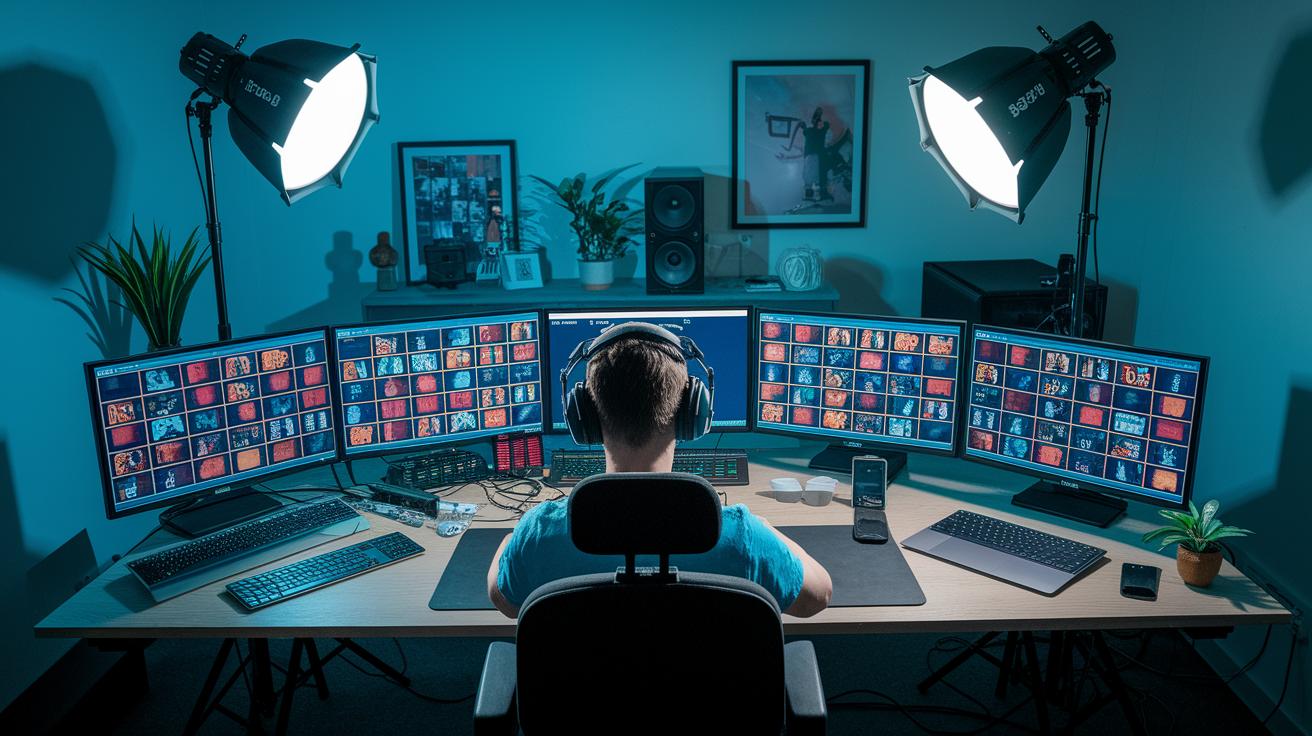
Think of your live broadcast like directing a movie. Start with a clear storyboard for your scene changes so every switch feels smooth. I once planned every transition as if I were setting up the perfect camera angle to catch a brilliant moment.
Getting your scene setup right is key. OBS fans often use guides for aligning keyframes and setting up scene collections to keep the visuals consistent. And don't forget to test your audio levels early. A balanced audio mix can turn a good stream into a great one.
Meld Studio suggests using scene templates. This saves time and makes it easy to update graphics or overlays when you need to. At the same time, DemoCreator shows how fun touches like 3D avatars and smooth clip merging add a unique vibe without making things overcomplicated.
Expand your reach by setting up multistream outputs. It also helps to record a backup so you don’t miss a moment. Scheduling outputs lets you blend live segments with pre-recorded content seamlessly.
- Plan out your scene transitions in detail
- Test and adjust audio levels for better clarity
- Use template-based scene presets
- Set up multistream outputs along with backup recordings
- Schedule outputs to mix live and recorded segments
Follow these tips and you'll have a solid, professional setup for your live productions.
Final Words
In the action, we explored top open streaming software options, from free live broadcast kits that work across Windows, macOS, and Linux to advanced configuration tips that boost production quality. We broke down essential features, troubleshooting fixes, and performance optimizations so you can easily set up your show.
With a friendly look at community tools and best practices, this guide makes it simple to elevate your live broadcast skills. Enjoy the benefits of reliable, curated insights for your next live event.
FAQ
Is OBS completely free?
The OBS Studio software is entirely free, open-source, and available at zero cost, enabling users to stream or record content without any hidden fees or subscriptions.
What is OBS software used for?
The OBS software is used for live streaming and video recording, offering customizable scenes, real-time audio-video mixing, and advanced settings to help creators produce high-quality broadcasts.
What is the best free streaming software?
The best free streaming software often includes OBS Studio, well-regarded for its robust features, while alternatives like Meld Studio and DemoCreator also offer solid streaming solutions without a fee.
Which free streaming software works on Windows 10 and PC?
Free streaming tools such as OBS Studio work smoothly on Windows 10 and other PCs, providing a simple installation process, broad compatibility, and a range of customizable features for quality broadcasts.
How much does OBS cost?
OBS Studio comes at no cost at all because it is open-source software, making it an ideal choice for streamers and video creators who prefer quality software without extra charges.
What free streaming software is great for YouTube broadcasts?
For YouTube broadcasts, OBS Studio offers excellent integration with customizable layouts, high-definition streaming, and real-time mixing that meets YouTube’s live streaming requirements.
What are some other streaming software alternatives?
In addition to OBS Studio, consider exploring tools like XSplit, Wirecast, Bandicam, Camtasia, and ShareX, each offering a unique set of features for video capture and live streaming.